
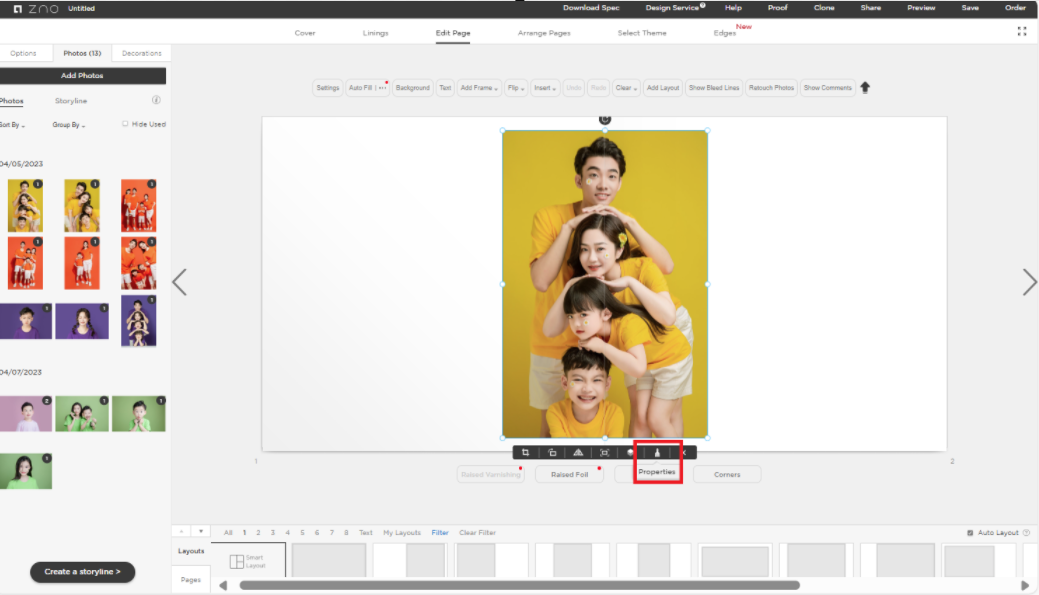
To add or change a border around an image, click on the image. Then in the dark gray bar that appears underneath the image, click on the Properties button (the paintbrush icon).
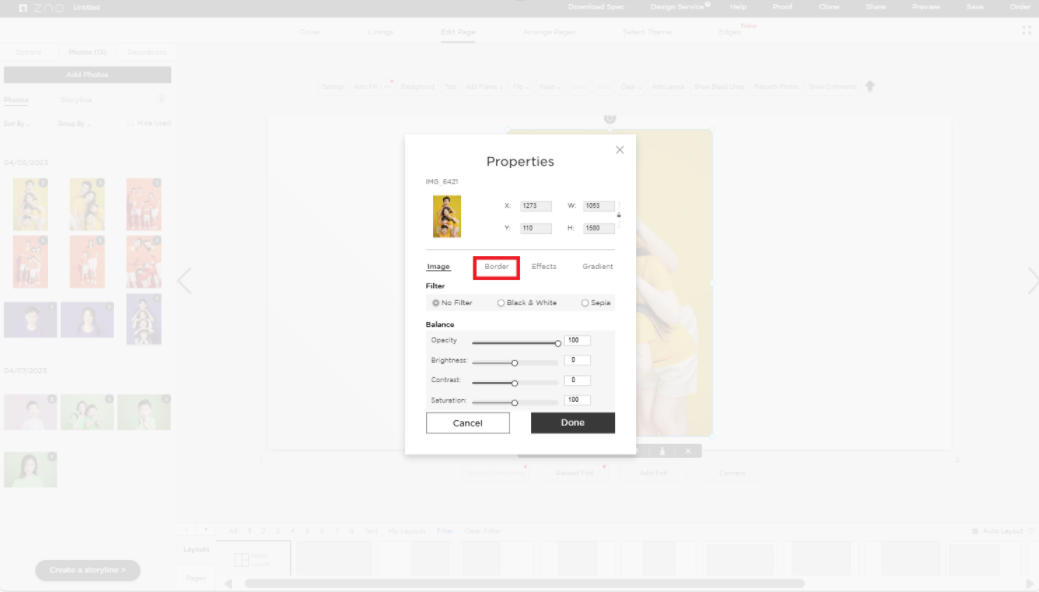
In the pop-up window, click on Border.
Here you can select the color, width and opacity of the border.
Please note: A black border, between 3-5 in size with a 100% opacity, is standard.
Then click Done.
You will then see an example of what the border will look like when printed.
If you have any further questions, please call 1-888-966-9539 or email support@zno.com.